 English ▾


# How to Blur Video Background in CapCut Without Losing Quality
A clean video background can make a big difference in how your content looks. Sometimes, a busy room, unwanted objects or people in the background can distract viewers from the main subject. This is where the blur effect becomes useful.
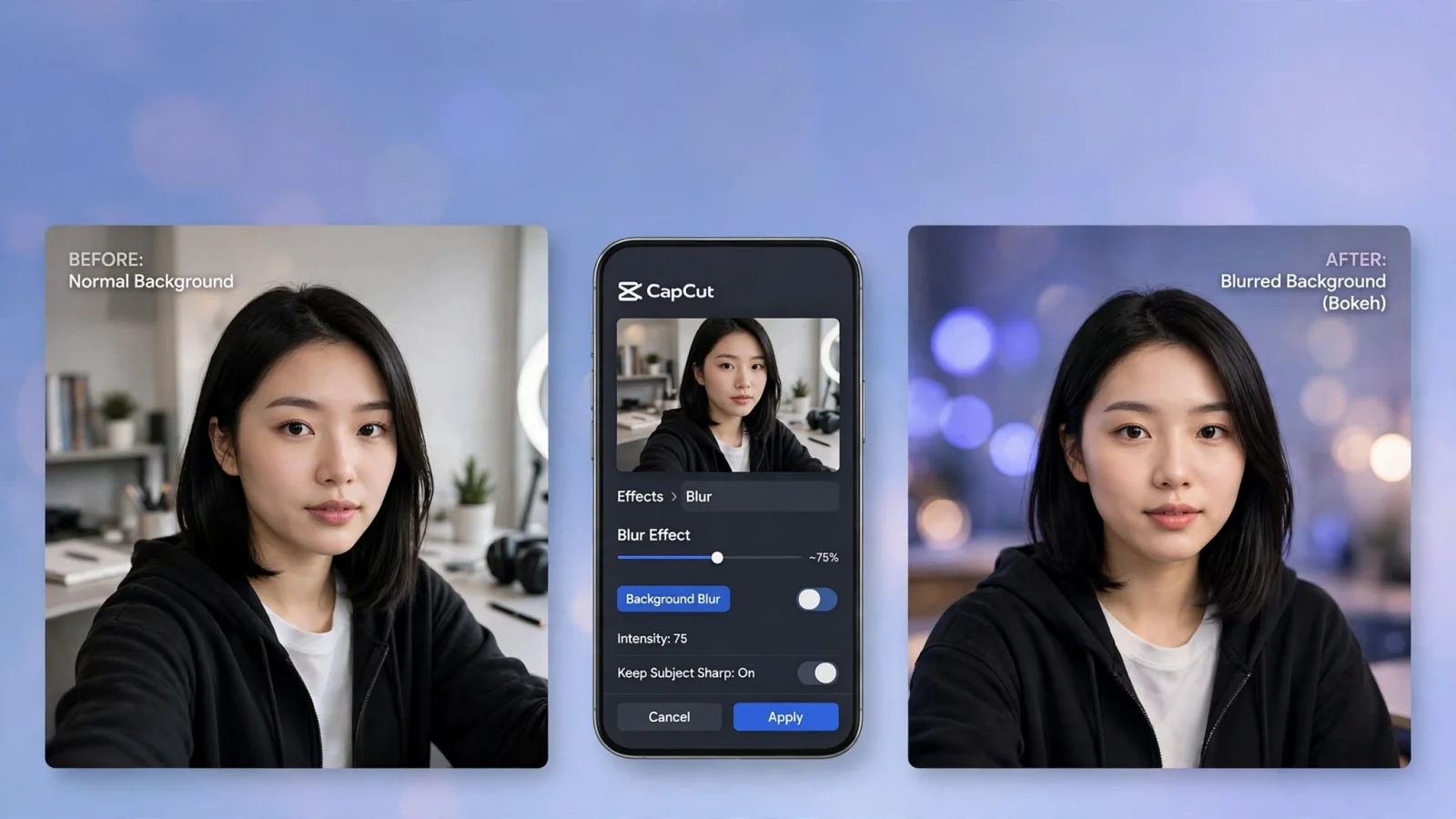
CapCut makes it possible to add blur effects to videos and create a softer background while keeping the main subject clear. Whether you are editing a portrait video, a short Reel or a YouTube clip, you can achieve a more polished result with a few simple steps.
Why Blur the Background of a Video?
Background blur is a popular editing technique because it helps viewers focus on the most important part of a video.
Here are some reasons to use it:
- **Better focus:** Keep attention on the person or object in your video.
- **Cleaner appearance:** Make distracting backgrounds less noticeable.
- **Professional look:** Create a soft, cinematic style for social media content.
- **Creative editing:** Give portrait videos a different visual style.
How to Blur Video Background in CapCut on Android and iPhone
Follow these steps to create a blurred background using the CapCut mobile app.
Step 1: Start a New Project
Open CapCut on your phone and tap New Project. Select the video you want to edit from your gallery and add it to the timeline.
Step 2: Find the Blur Effect
Open the Effects section and select Video Effects. Search for Blur and choose an effect that matches your editing style.
Preview the available effects before selecting one. Adjust the intensity if the option is available in your version.
Step 3: Add an Original Video Overlay
If you want to keep the person clear while blurring the background, add the original video as an overlay.
Align the overlay with the original clip. Select the overlay and look for the Remove BG or Auto Removal option to separate the subject from its background.
Keep the blurred layer underneath the clear subject layer.
Step 4: Preview Your Video
Play the complete video and check the edges around the subject. Pay attention to hair, hands and moving objects because background removal may not always look perfect.
Adjust the effect if the result looks too strong.
Step 5: Export Your Video
Once everything looks good, tap Export. For most social media videos, 1080p at 30 FPS is a practical starting point.
How to Blur Video Background in CapCut on PC
You can also create a background blur effect on a computer.
1. Open CapCut on your PC and create a new project.
2. Import your video and drag it onto the timeline.
3. Duplicate the video to create a second layer.
4. Select the lower layer and apply a Blur effect from the Effects section.
5. Select the upper layer and use Remove BG or Auto Removal to separate the main subject.
6. Check the alignment and preview the result.
7. Export your finished video in your preferred resolution.
The exact menu names may vary depending on your CapCut version.
Tips for Getting a Better Blur Effect
A strong blur does not always produce the best result. Keep these tips in mind:
- Use a video with good lighting.
- Avoid excessive blur intensity.
- Keep the main subject properly aligned.
- Check the video at different points in the timeline.
- Use a suitable export resolution to preserve detail.
Common Problems When Blurring a Video
**Why does my entire video become blurry?**
You may have applied the blur effect to the complete clip instead of separating the foreground subject. Check your video layers and effect placement.
**Why does the background removal look rough?**
Poor lighting, similar background and subject colours, or fast movement can make separation difficult. Try using clearer footage.
**Can I blur a video without removing its background?**
Yes. You can apply a blur effect to the entire video, but keeping the subject sharp requires an additional foreground separation step.
Final Thoughts
Learning how to blur video backgrounds in CapCut can help you create cleaner and more attractive videos without complicated editing software. Start with a simple clip, experiment with different blur levels and choose the result that looks most natural.
For more useful editing tutorials, explore our other CapCut guides at capcutapkdownload.com.