 English ▾


# How to Create a Seamless Loop Video in CapCut
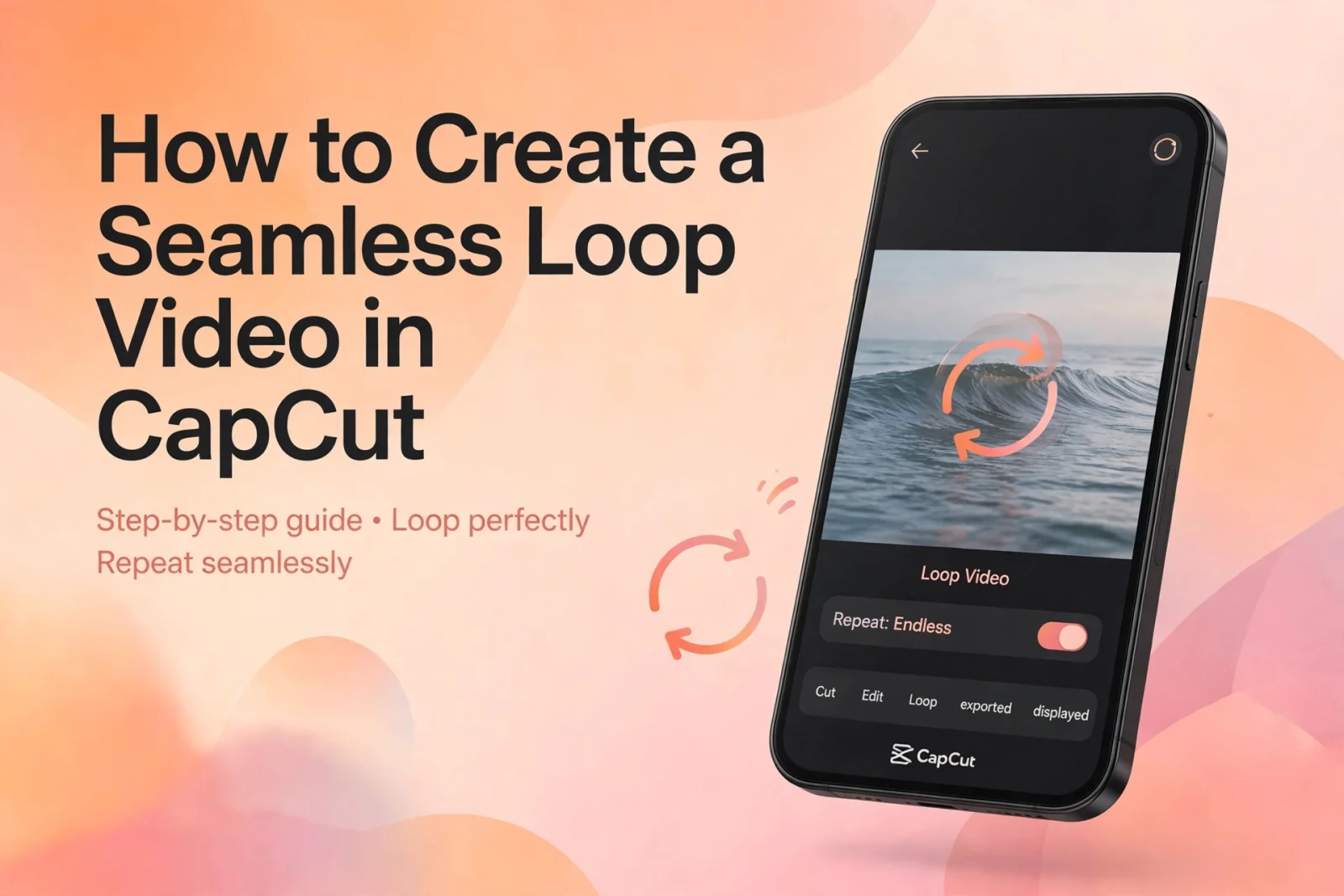
Have you ever watched a short video that seems to play continuously without showing where it starts or ends? This effect is called a seamless loop.
Looping videos are popular on Instagram Reels, TikTok, YouTube Shorts, and other social media platforms. They make simple clips more engaging because viewers can watch the same moment repeatedly without noticing a sudden restart.
You can create this effect in CapCut using clip trimming, duplication, timing adjustments, and simple transitions.
What Is a Seamless Loop Video?
A seamless loop is a video in which the ending connects naturally with the beginning. Instead of showing an obvious cut when the video repeats, the movement appears continuous.
For example, a person walking, a moving car, flowing water, or rotating objects can work well in a looping video.
The most important part is choosing footage where the final frame can connect naturally with the first frame.
How to Create a Loop Video in CapCut
Follow these steps to make a basic looping video on your phone.
Step 1: Start a New Project
Open CapCut and tap New Project. Select a video that contains continuous movement and add it to your timeline.
Clips with repeating actions, such as walking, spinning, or moving objects, are usually easier to turn into loops.
Step 2: Find a Suitable Starting Point
Watch your footage and find a moment where the movement begins naturally.
Trim unnecessary parts from the beginning and end. Try to choose an ending that visually matches the opening of the clip.
Step 3: Duplicate the Video Clip
Select your video in the timeline and use the Copy or Duplicate option, if available.
Place the copied clip immediately after the original clip.
Now you have two clips that can be adjusted to create a repeating sequence.
Step 4: Adjust the Ending and Beginning
Watch the connection between the two clips.
If the movement suddenly jumps, trim a few frames from the beginning or end of the copied clip. Look for a position where the subject, camera angle, and movement feel similar.
Small timing changes can make a noticeable difference.
Step 5: Try a Reverse Effect
For some types of footage, a reverse effect can create an interesting loop.
Select the duplicated clip and look for the Reverse option. CapCut will play that clip backward.
This works especially well for simple movements, such as a person raising an object and then lowering it. However, reverse playback may look unnatural for walking, speaking, or complicated actions.
Step 6: Preview the Full Sequence
Play the video several times, paying attention to the point where it restarts.
If you notice a sudden jump, return to the timeline and adjust the clip positions or trim points.
Once the connection looks natural, export your video.
Tips for Making Better Loop Videos
Choose the Right Footage
Start with footage that contains repeated or predictable movement. A rotating fan, flowing water, or a moving camera can be easier to loop than a person speaking.
Match the First and Last Frames
The closer the opening and ending frames look, the less noticeable the restart will be.
Avoid Unnecessary Transitions
A transition is not always needed. For a seamless loop, a clean cut can look better when the two frames already match.
Keep the Video Short
Short clips are often easier to repeat smoothly. Focus on one clear movement instead of combining too many scenes.
Check the Sound
If your video contains music or background audio, make sure the audio ending does not create an obvious break when the video restarts.
Common Seamless Loop Problems
**The video jumps when it restarts**
The final frame may not match the opening frame. Try trimming the clip and choosing a better connection point.
**The reverse effect looks unnatural**
Not every action works in reverse. Use reverse playback only when the movement still looks realistic.
**The music stops suddenly**
Adjust the audio duration and use a suitable fade-out or fade-in if needed.
**The loop looks too repetitive**
Try changing the framing slightly or selecting a more interesting movement. A good loop should feel natural rather than distracting.
Final Thoughts
Creating a seamless loop in CapCut is a useful editing technique for short-form content. With the right footage, careful trimming, and a little timing adjustment, you can create videos that replay smoothly.
Start with a simple clip, experiment with duplicated or reversed footage, and preview the ending several times before exporting. Small adjustments can make the difference between an obvious repeat and a natural-looking loop.
Frequently Asked Questions
Can I create a seamless loop in CapCut?
Yes. You can use trimming, duplicated clips, and reverse playback to create looping videos.
Which videos work best for looping?
Clips with repeated movement, such as spinning objects, flowing water, and walking scenes, can work well.
Does a seamless loop need a transition?
No. A clean cut often works better when the final and first frames already match.
Can I make a loop video for Instagram Reels?
Yes. Choose a vertical 9:16 format and export the video using suitable resolution and frame-rate settings.
Why does my loop look unnatural?
The ending and beginning may not connect properly. Try adjusting the trim points or choosing a clip with more predictable movement.