 English ▾


Introduction
Have you ever recorded a video and noticed unwanted sounds in the background? It could be traffic, wind, a fan, people talking, or other noises that make your voice difficult to hear.
Background noise can affect the overall quality of a video, even when the visuals look great. Fortunately, CapCut offers audio editing tools that can help you improve your recordings and create cleaner-sounding videos.
In this guide, you will learn how to reduce background noise in CapCut, improve voice clarity, and make your audio sound better.
Why Should You Remove Background Noise?
Unwanted background sounds can distract viewers and make your video less enjoyable.
Here are some reasons why cleaning up your audio is important:
- Makes spoken words easier to understand.
- Reduces distracting sounds in recordings.
- Improves the overall listening experience.
- Makes tutorials and voiceovers sound more professional.
- Helps create better content for TikTok, Instagram, and YouTube.
Clear audio is especially important for educational videos, interviews, tutorials, and talking-head content.
How to Remove Background Noise in CapCut
Follow these steps to improve your video's audio.
Step 1: Open CapCut and Import Your Video
Launch CapCut on your device and tap New Project.
Select the video you want to edit and import it into the editing timeline.
Step 2: Select Your Video or Audio Track
Tap the video clip in the timeline to open its editing options.
If your audio is on a separate track, select that audio track instead.
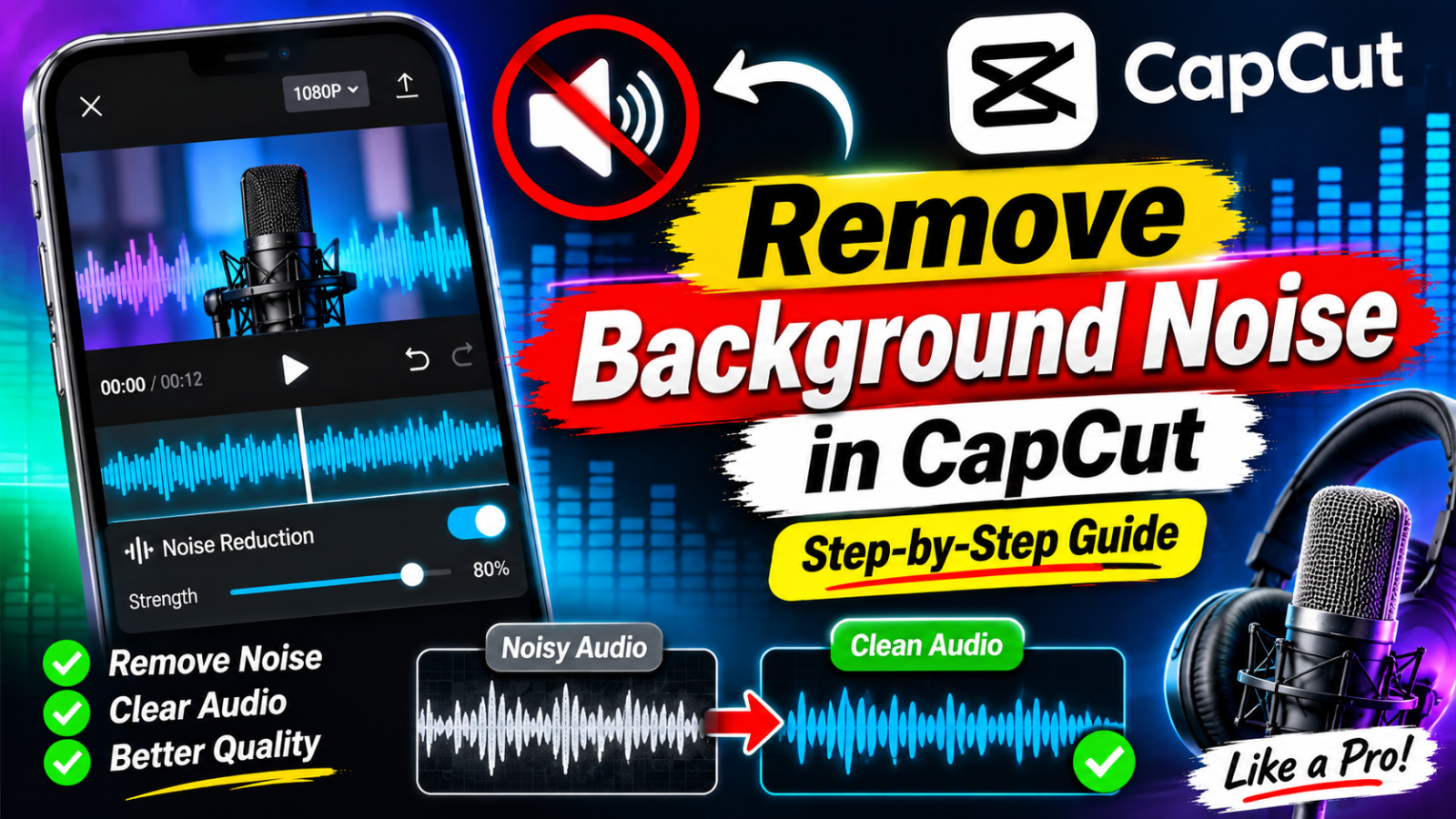
Step 3: Find the Noise Reduction Option
Look through the available audio or editing tools for the Noise Reduction option.
Depending on your CapCut version and device, the feature may appear in a different location.
If the option is available, enable it to reduce unwanted background sounds.
Step 4: Preview Your Audio
Play the video and listen carefully to the result.
Check whether your voice sounds clear and natural. If the audio starts sounding unnatural or some words become difficult to hear, try adjusting the available settings.
Step 5: Improve Your Audio Further
You can also make additional adjustments to improve your recording:
- Adjust the volume to a comfortable level.
- Reduce distracting background music.
- Use voice enhancement if available.
- Keep background music lower than spoken audio.
- Avoid applying too many audio effects.
Step 6: Export Your Video
Once you are happy with the audio quality, tap Export.
Choose your preferred resolution and frame rate, then save your edited video.
Your video is now ready to share.
Tips for Getting Cleaner Audio in CapCut
Noise reduction can help, but the quality of your original recording also matters.
Try these useful tips:
Record in a Quiet Environment
Whenever possible, record in a room with minimal background noise. Turn off fans or other noisy equipment before recording.
Keep Your Microphone Close
Keeping your microphone at a suitable distance from your mouth helps capture your voice more clearly.
Avoid Excessive Noise Reduction
Applying too much noise reduction can make voices sound robotic or unnatural. Always listen to the final result before exporting.
Use Headphones for Audio Checking
Headphones can help you notice unwanted sounds that might not be obvious through your phone speakers.
Can CapCut Completely Remove Background Noise?
Not always. CapCut can help reduce unwanted sounds, but completely removing every background noise is not guaranteed.
For example, strong traffic sounds, wind, or people speaking close to the microphone may be difficult to remove without affecting the main voice.
The final result depends on the original recording and the available audio tools.
Common Background Noise Problems
Why Is My Voice Still Noisy After Noise Reduction?
Some background sounds may be too strong or mixed closely with your voice. Try using a cleaner original recording and adjusting the noise reduction settings.
Does Noise Reduction Affect Voice Quality?
It can. Strong noise reduction may affect natural voice details, so use it carefully.
Can I Remove Wind Noise in CapCut?
You may be able to reduce some wind noise using available audio cleanup tools. However, heavy wind distortion can be difficult to fix completely.
Is Noise Reduction Available in CapCut for Android and iPhone?
Feature availability and editing options can vary depending on your CapCut version, device, and region.
Conclusion
Removing background noise is an important part of creating better videos. CapCut provides useful audio editing options that can help reduce unwanted sounds and improve the listening experience.
By using noise reduction carefully, checking your audio, and recording in a quiet environment, you can create clearer and more enjoyable videos for your audience.