 English ▾


# How to Fix Lagging and Choppy Video Preview in CapCut
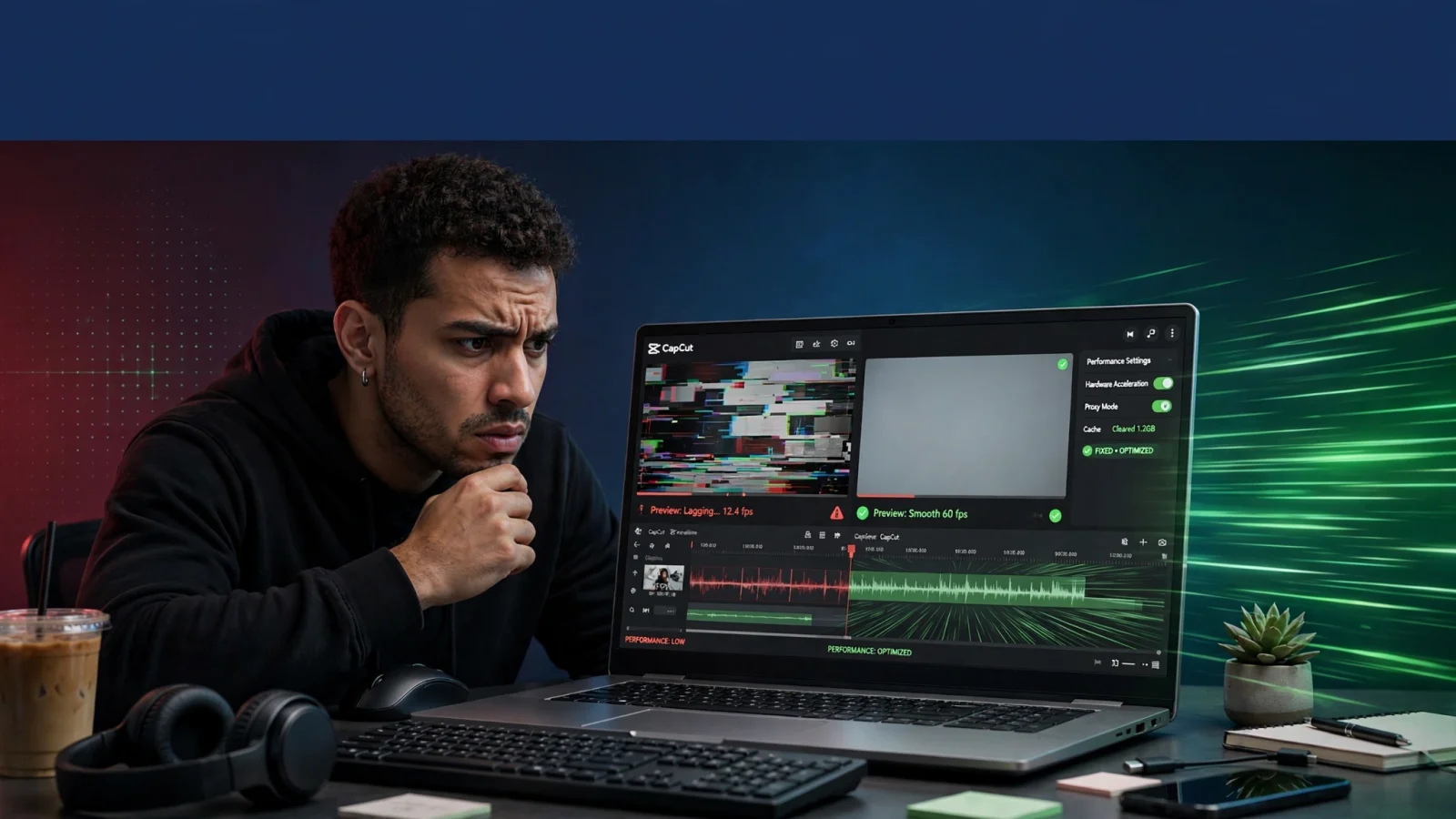
Have you ever tried editing a video in CapCut, but the preview keeps freezing or playing slowly? This can make even a simple editing project frustrating.
CapCut may lag because of limited device resources, large video files, multiple effects or insufficient free storage. Fortunately, there are several ways to improve playback performance.
In this guide, you will learn how to fix lagging and choppy video previews in CapCut.
Why Does CapCut Lag During Editing?
Video editing requires your phone to process clips, effects, audio and other elements together. When your device struggles to handle this workload, the preview may become slow or choppy.
Common reasons include:
- Too many effects and filters.
- Large or high-resolution video files.
- Low available storage.
- Too many apps running in the background.
- An outdated version of CapCut.
1. Close Unnecessary Background Apps
Running multiple applications can use your phone's available memory.
Before opening CapCut, close apps that you are not using. This can free up resources and help your editing project run more smoothly.
Avoid running heavy games or other demanding applications while editing large videos.
2. Free Up Storage Space
Low storage can affect your phone's overall performance.
Check your device storage and remove unnecessary downloads, duplicate videos and files you no longer need.
Keep your original editing clips safe before deleting anything. Never remove CapCut project files or important media without checking them first.
3. Reduce Heavy Effects
Multiple filters, transitions, overlays and visual effects can increase the workload during playback.
Try temporarily removing unnecessary effects to see whether the preview becomes smoother.
You can also split a complicated project into smaller editing sections instead of applying too many effects at once.
4. Lower the Preview Quality
If your version of CapCut provides a preview-quality or performance option, try lowering it while editing.
Remember that preview quality and final export quality are different things. A lower-quality preview does not necessarily mean your exported video will have lower resolution.
5. Restart CapCut and Your Phone
Sometimes temporary software problems can affect playback.
Save your project, close CapCut completely and restart your phone. Then open your project again and check whether the issue has improved.
This simple step can help when the app becomes temporarily unresponsive.
6. Update CapCut
Using an outdated version may cause compatibility issues or bugs.
Check for updates through a trusted official app store. Before updating, make sure your important projects are saved and backed up where possible.
Avoid downloading modified or unknown APK files just to fix playback problems.
7. Export a Short Test Video
If the preview still looks choppy, export a short section of your project.
Play the exported file in your phone's gallery. If the exported video looks smooth, the problem may be limited to timeline preview performance rather than the final video.
This test can help you understand where the issue is happening.
Final Thoughts
Lagging video previews can make editing in CapCut difficult, but a few simple changes may improve the experience. Free up storage, close unnecessary apps, reduce heavy effects and keep the app updated.
If the problem continues, check whether your phone meets the requirements for the video resolution and effects you are using.
A smoother editing workflow starts with a well-organized project and a device with enough available resources.